
Connecting Jira
Create and link Jira issues from customer conversations to track bugs, feature requests, and support tasks.
Prerequisites
Before connecting Jira, you'll need:
- A Jira Cloud account (Atlassian)
- An API token from your Atlassian account
- A project where issues will be created
Getting Your API Token
- Go to Atlassian Account Settings
- Click Create API token
- Give it a name (e.g., "Helplane Integration")
- Copy the generated token immediately (you won't see it again)
Configuring Jira in Helplane
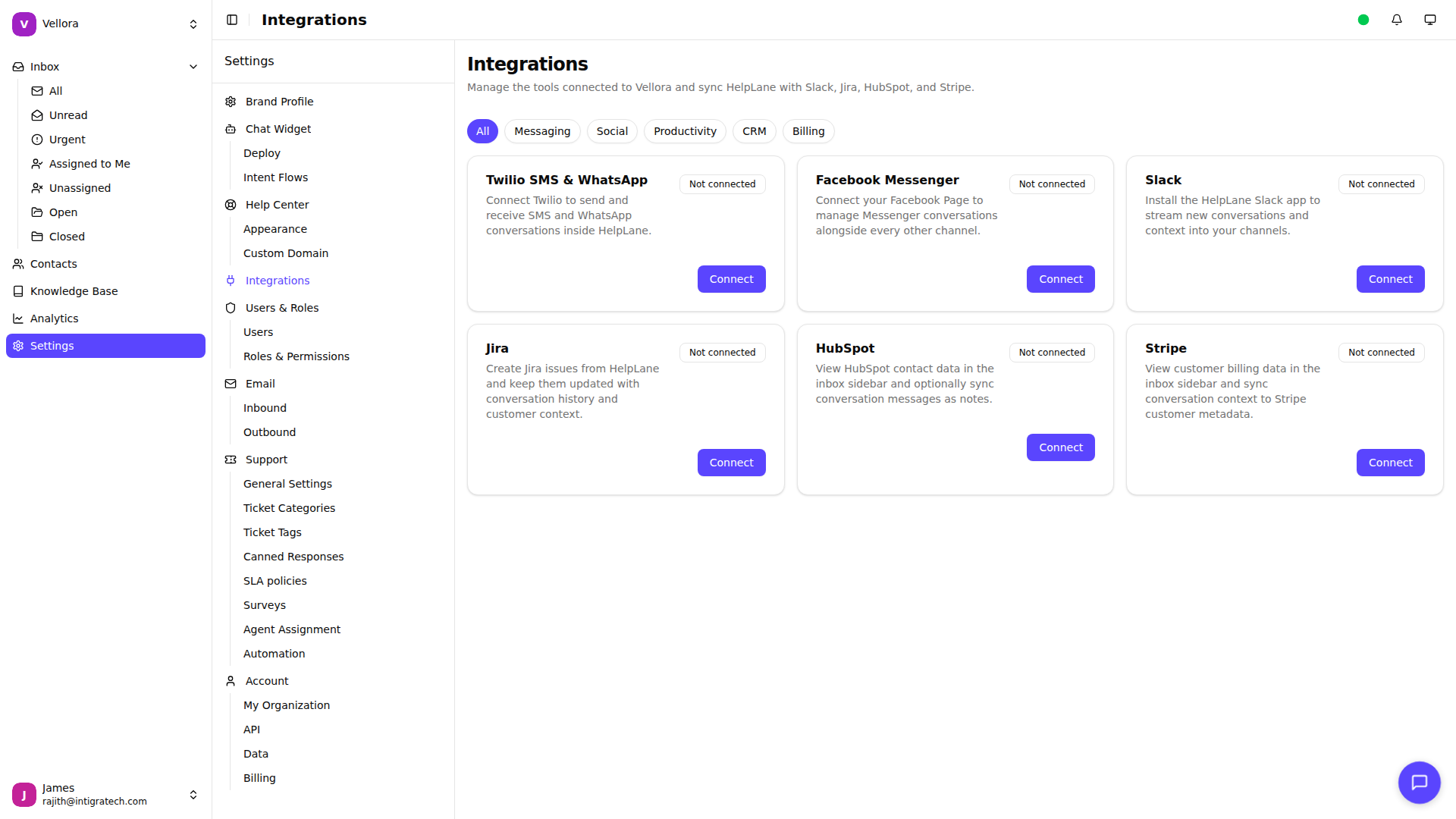
- Go to Settings in the left sidebar
- Select Integrations
- Select the brand you want to connect Jira to (each brand can have its own Jira configuration)
- Find Jira in the Apps section
- Click Connect
Note: Jira is connected per brand. If you have multiple brands, you can connect each to a different Jira project.
Required Settings
Site URL
Your Atlassian site URL in the format https://your-domain.atlassian.net
Account Email The email address associated with your Atlassian account.
API Token The API token you generated from your Atlassian account.
Project Key The key of the Jira project where issues should be created (e.g., "SUP", "BUG", "FEAT").
Find your project key in Jira:
- Go to your project in Jira
- Look at the URL - it contains the project key
- Or check Project Settings > Details
Issue Type (Optional) The type of issue to create (e.g., "Task", "Bug", "Story"). If not specified, defaults to "Task".
Creating Issues from Conversations
Once Jira is connected, you can create issues directly from the conversation sidebar:
- Open a conversation
- Find the Jira section in the sidebar
- Click Create Issue
- Enter a summary and optional description
- The issue is created in your configured Jira project
Created issues include:
- Summary: Your provided title
- Description: Your provided description
- Project: Your configured project
- Issue Type: Your configured type (or "Task")
Linking Existing Issues
You can also link existing Jira issues to conversations:
- Open a conversation
- In the Jira sidebar section, click Link Issue
- Search for the issue by key or text
- Select the issue to link it
Linked issues display their current status, priority, and assignee directly in Helplane.
Use Cases
Bug Tracking When customers report bugs, create a Jira issue directly from the conversation to track it for your development team.
Feature Requests Capture customer feedback as Jira issues to add to your product backlog.
Escalations Technical issues that need engineering attention can be tracked in your sprint by creating or linking Jira issues.
Support Tasks Create tasks for follow-up actions that need tracking outside of Helplane.
Troubleshooting
Issues not being created
- Verify your API token is correct and hasn't expired
- Check that the project key exists and you have permission to create issues
- Ensure the issue type exists in your project
Authentication errors
- Double-check your email address matches your Atlassian account
- Generate a new API token if the current one isn't working
- Verify your site URL is correct (include https://)
Wrong project or issue type
- Review your configuration in Helplane
- Remember project keys are case-sensitive
Limitations
- Updates in Jira don't sync back to Helplane (issue status is fetched when viewing)
- One Jira project per brand configuration
- Issues must be created or linked manually from the conversation sidebar