
Connecting Slack
Handle customer conversations directly from Slack with two-way message sync.
What the Slack Integration Does
- Two-way messaging: Reply to customers from Slack - messages sync back to HelpLane automatically
- Dedicated channels: Each conversation gets its own Slack channel (hl-*) with full context
- Inbox notifications: New conversations are announced in #helplane-inbox
- Slash commands: Assign, close, add notes, set priority, and check visitor status without leaving Slack
- Visitor presence: See if customers are online and what page they're viewing
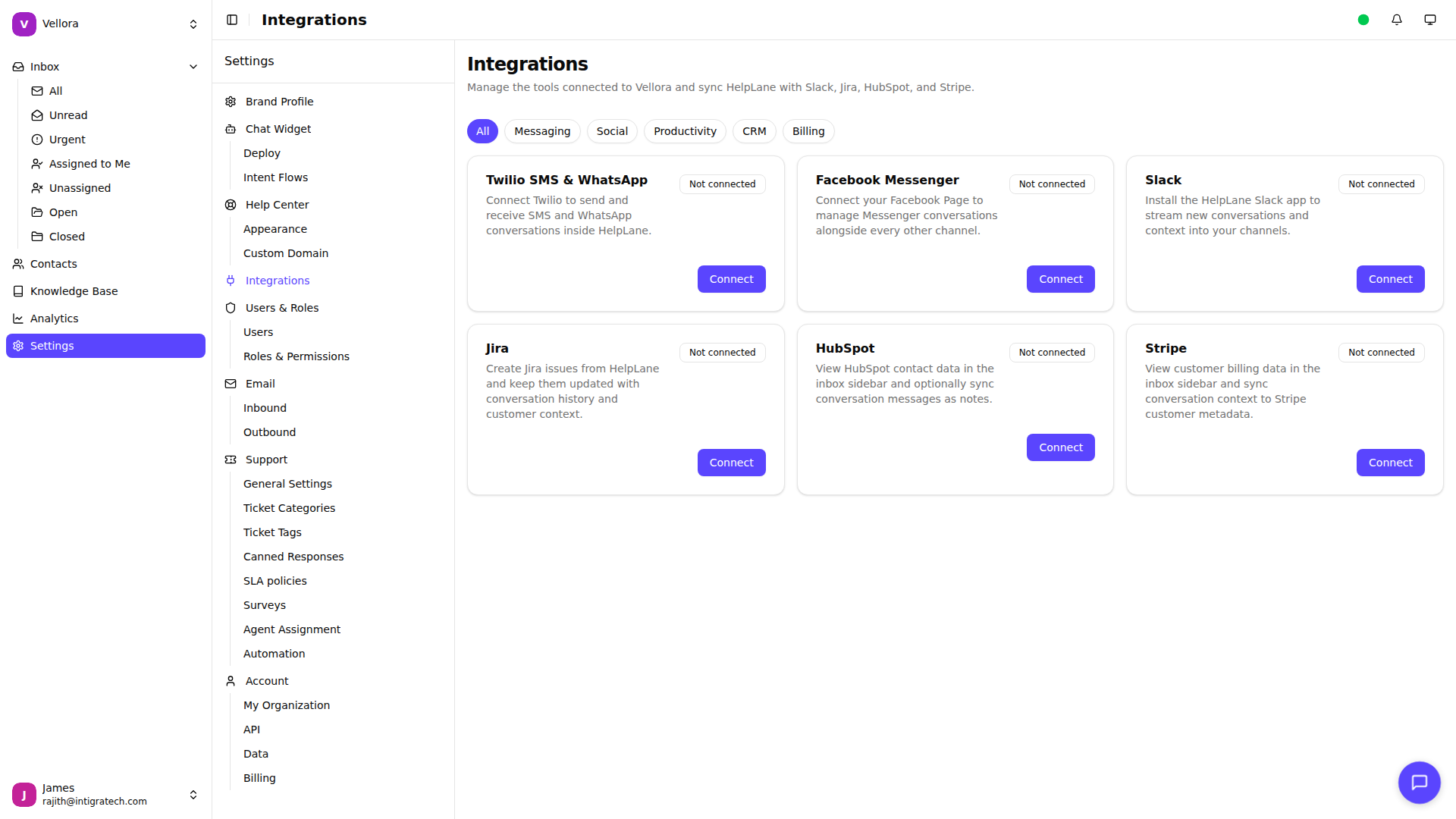
Accessing Integration Settings
- Go to Settings in the left sidebar
- Select Integrations
Setting Up Slack
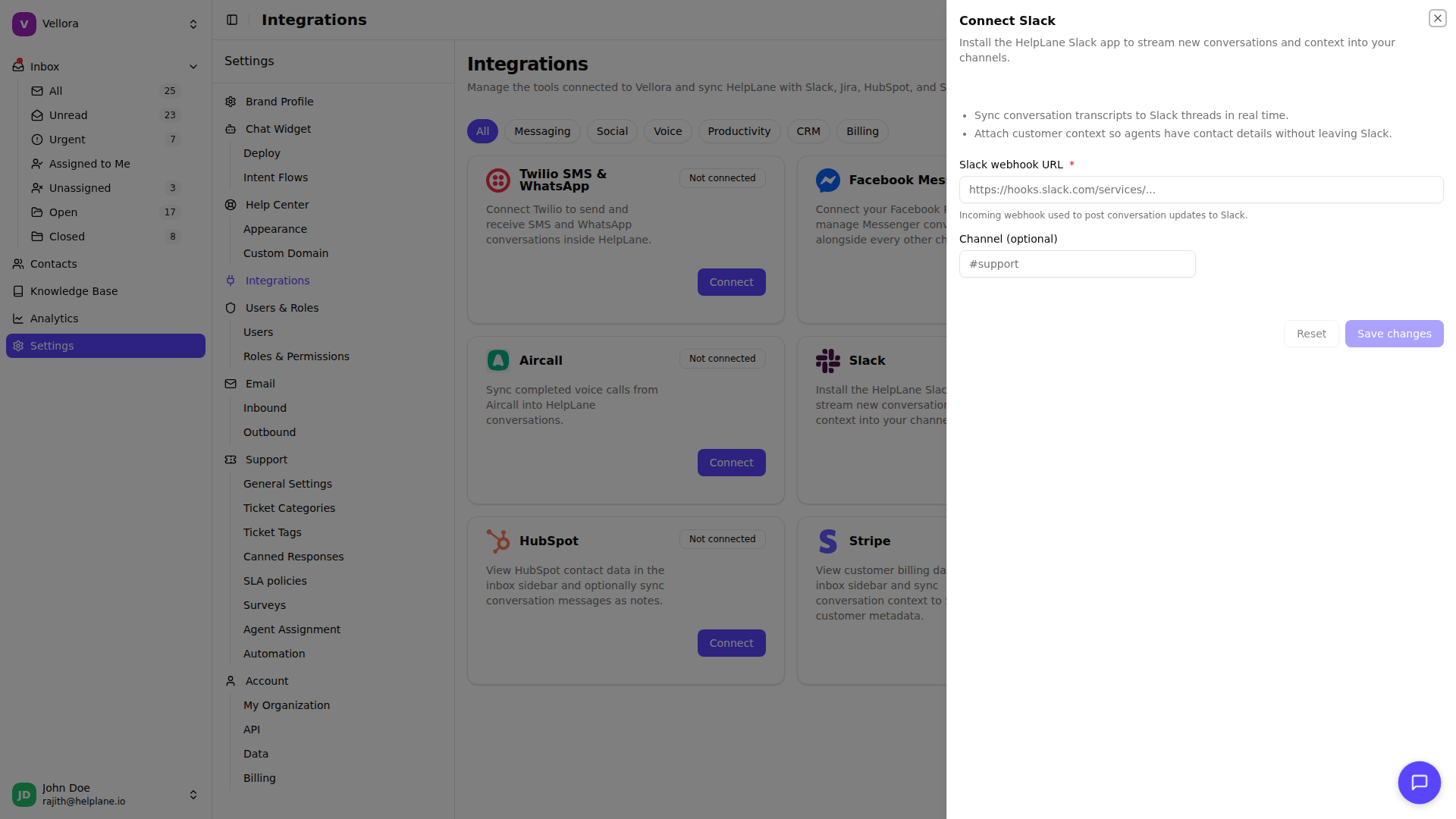
- Find Slack in the integrations list
- Click Connect
- You'll be redirected to Slack to authorize HelpLane
- Select your workspace and click Allow
- You'll be redirected back to HelpLane
Mapping Team Members
For agents to reply from Slack, they need to be mapped to their Slack accounts:
- Go to Settings > Integrations > Slack
- Click User Mappings
- For each HelpLane agent, select their corresponding Slack user
- Click Save
When an agent replies in a Slack conversation channel, their message is attributed correctly in HelpLane.
How It Works
New Conversations
When a customer starts a conversation:
- A dedicated Slack channel is created (e.g., #hl-a00042)
- A notification is posted to #helplane-inbox
- All mapped team members are automatically invited to #helplane-inbox
Replying to Customers
- Join the conversation's Slack channel
- Type your reply as a normal message
- Your message is sent to the customer through HelpLane
Note: Only messages from mapped users are sent to customers. Messages from unmapped Slack users are ignored.
Slash Commands
Use /hl-* commands in any conversation channel for quick actions:
| Command | Description |
|---|---|
/hl-assign @user | Assign the conversation to a team member |
/hl-close | Close the conversation |
/hl-note <text> | Add an internal note (only visible in HelpLane) |
/hl-priority <level> | Set priority (high, medium, low, very_low) |
/hl-presence | View visitor online status and current page |
Visitor Presence
Check if a visitor is online and what page they're viewing:
- Go to the conversation's Slack channel
- Type
/hl-presence - You'll see:
- Online/offline status
- Last seen time
- Current page title and URL (if available)
This helps you respond while customers are still engaged.
Agent Assignment
When you assign a conversation to an agent in HelpLane:
- The agent is automatically invited to the Slack channel
- They can start replying immediately
Disconnecting
To disconnect Slack:
- Go to Settings > Integrations
- Find Slack and click Manage
- Click Disconnect
Note: Disconnecting will stop message sync. Existing Slack channels will remain but will no longer sync with HelpLane.
Troubleshooting
Messages not appearing in Slack
- Check that the brand has Slack connected in Settings > Integrations
- Verify the conversation was created after Slack was connected
Replies from Slack not reaching customers
- Ensure the agent is mapped in User Mappings
- Check that the message was sent in a conversation channel (hl-* channels)
Can't see #helplane-inbox
- The channel is created when the first conversation comes in
- Check if you've been invited to the channel
- Ask a workspace admin to invite you