
Creating Automation Rules
Automate repetitive tasks in your inbox with workflow rules.
Available on: Growth plan and above
What is Automation?
Automation rules let you automatically perform actions when certain events occur. For example, you can:
- Auto-assign conversations to specific agents based on keywords
- Add tags when customers mention certain topics
- Send email notifications when SLA is about to breach
- Trigger webhooks to integrate with external systems
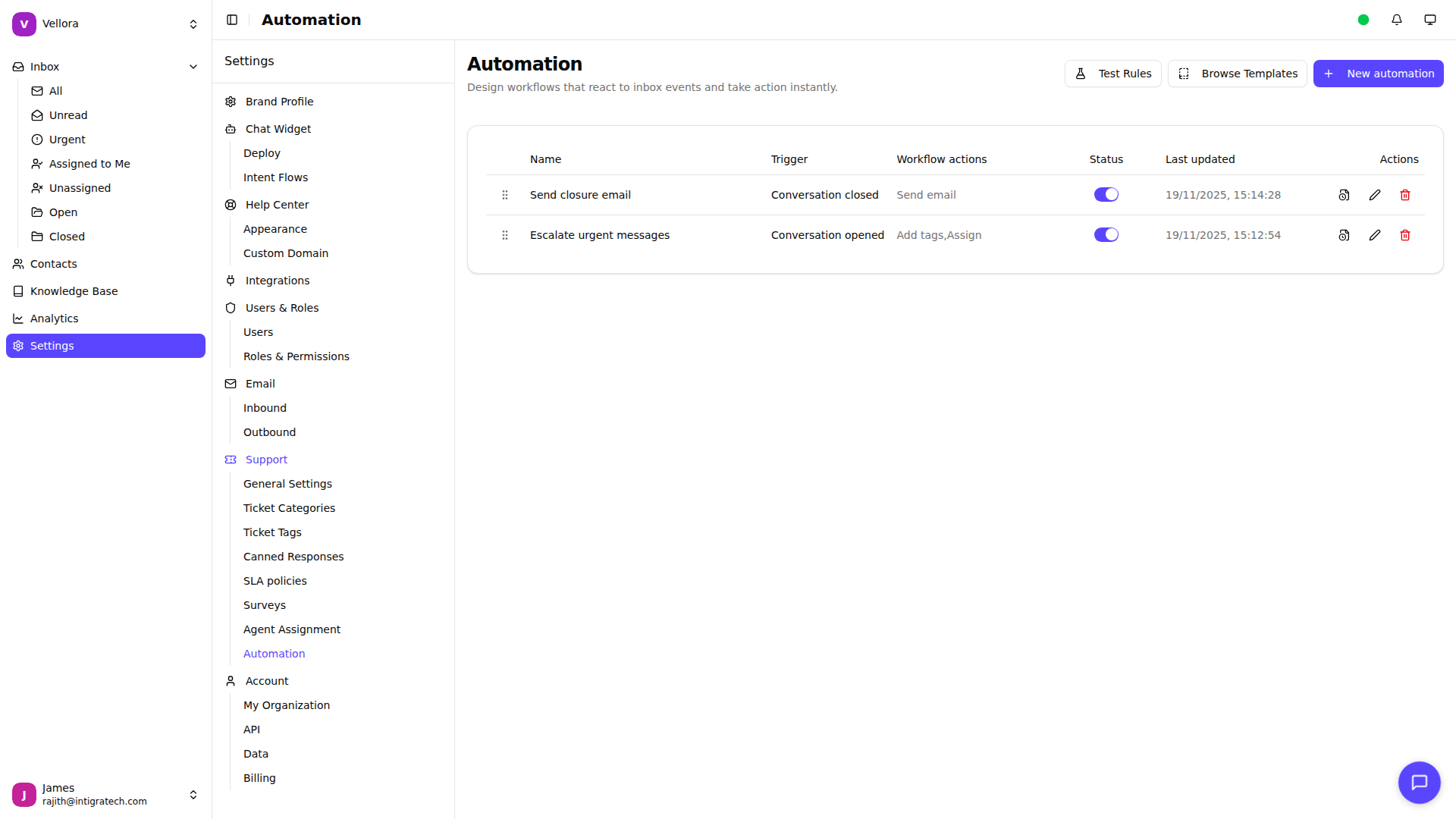
Accessing Automation Settings
- Go to Settings in the left sidebar
- Select Automation under the Support section
Creating Your First Rule
- Click New automation
- Configure your rule:
- Name: Give your rule a descriptive name
- Description: Optional context for your team
- Trigger: Select when this rule should run
- Conditions: Add filters to narrow when the rule applies
- Actions: Choose what happens when the rule matches
- Click Create to save
Available Triggers
Conversation Events:
- Conversation opened - When a new conversation starts
- Conversation closed - When a conversation is resolved
- Conversation reopened - When a closed conversation gets a new message
- Awaiting reply - When customer sends a message
- Agent replied - When an agent responds
SLA Events:
- SLA breached - Any SLA deadline missed
- SLA due soon - Any SLA deadline approaching
- First response breached/due soon - First response deadline
- Resolution breached/due soon - Resolution deadline
- Follow-up breached/due soon - Follow-up deadline
Adding Conditions
Conditions filter which conversations match your rule. Click Add condition and choose from:
- Conversation state: Open or Closed
- Priority: Low, Normal, High, or Urgent
- Assigned agent: Specific team member or unassigned
- Channel: Widget, Email, WhatsApp, SMS, Facebook Messenger
- Tags: Conversations with specific tags
- Category: Ticket category
- Subject/Content: Text matching in subject or messages
- Contact fields: Email, name, or phone matching
When you have multiple conditions, choose:
- All conditions (AND): Every condition must match
- Any condition (OR): At least one condition must match
Available Actions
Assign to Agent: Automatically route the conversation to a team member.
Add Tags: Apply one or more tags to organize the conversation.
Send Email: Send a notification email with customizable subject, body, and priority. Use variables like {{contact_email}}, {{conversation_id}}, and {{assigned_agent}}.
Send Webhook: Send data to an external URL. Configure the HTTP method, URL, headers, and JSON body with variable substitution.
Rule Priority
Rules are processed in order from top to bottom. You can drag rules to reorder them in the automation list.
Enable Stop on match on a rule to prevent subsequent rules from running when this rule matches. This is useful for fallback patterns.
Activating Rules
Toggle the status switch in the rule list to activate or deactivate rules. Inactive rules won't process any events.