
Data & Privacy
Updated Dec 15, 2025
Manage your data and account.
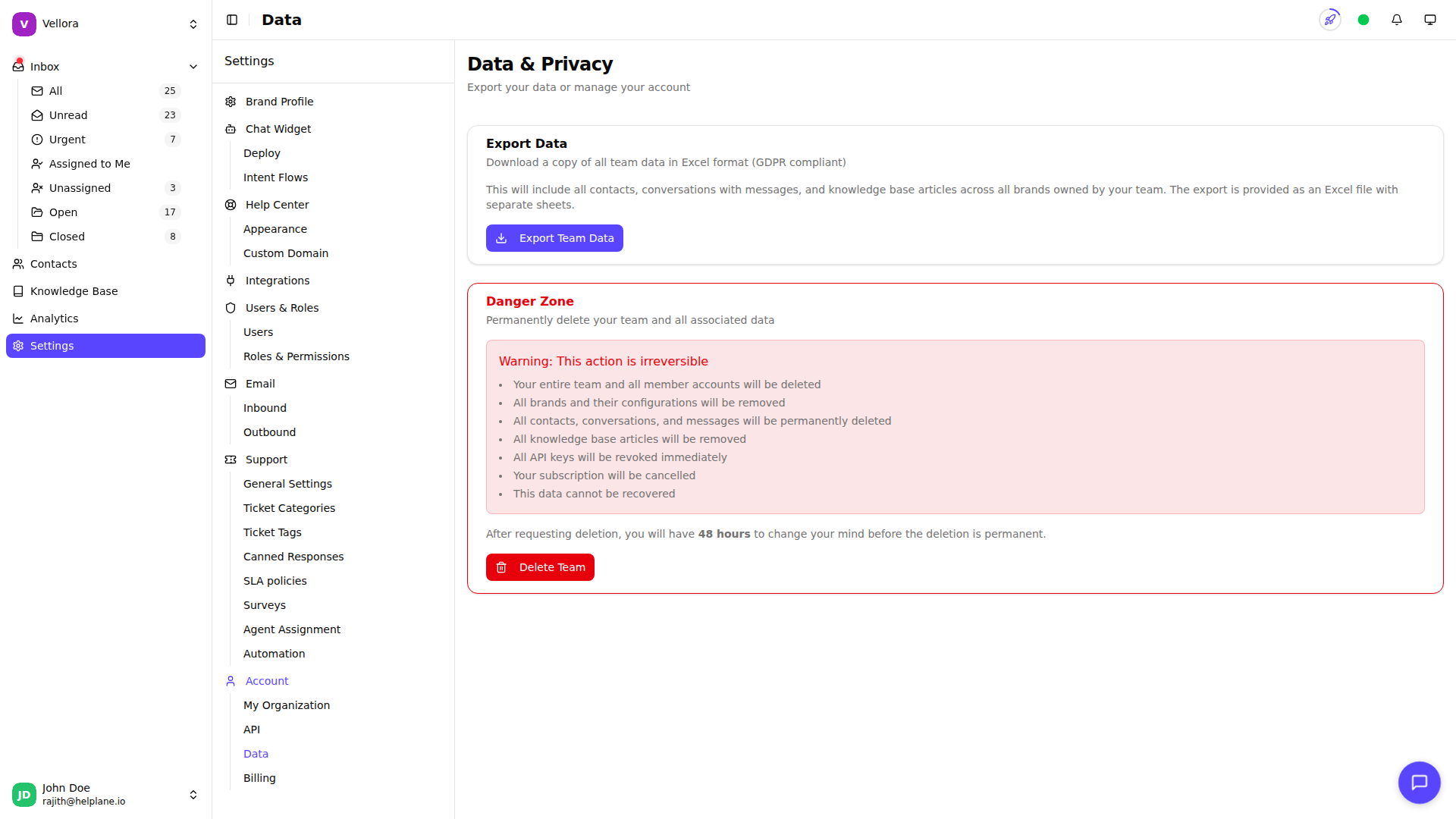
Accessing Data Settings
- Go to Settings in the left sidebar
- Select Data under Account
Exporting Your Data
Download all your team's data:
- Go to Settings > Data
- Click Export Data
- Wait for the export to generate
- Download the Excel file
The export includes:
- All contacts
- Conversations and messages
- Knowledge base articles
- Data from all your brands
Deleting Your Team
Warning: Team deletion is permanent and cannot be undone. Only the team owner can perform this action.
Before You Delete
- Export any data you want to keep
- Inform your team members - their accounts will also be deleted
- Download any important conversations or knowledge base content
Deletion Process
- Go to Settings > Data
- Scroll to Danger Zone
- Click Delete Team
- Enter your password to confirm (or type "confirm" if you signed up with Google)
- Click Yes, Delete Team
What Gets Deleted
- Your entire team and all member accounts
- All brands and their configurations
- All contacts, conversations, and messages
- All knowledge base articles
- All API keys
- Your subscription (automatically cancelled)
This is a GDPR-compliant deletion that removes all team data from our servers.
Data Retention
- Active accounts: Data retained indefinitely
- Deleted teams: Data removed immediately