
Importing Contacts
Updated Dec 15, 2025
Bulk import contacts from a spreadsheet.
Preparing Your File
Create a CSV or Excel file with these columns:
| Column | Required | Description |
|---|---|---|
| name | Yes | Contact's full name |
| Yes | Email address | |
| phone | No | Phone number |
| category | No | Contact category |
Starting an Import
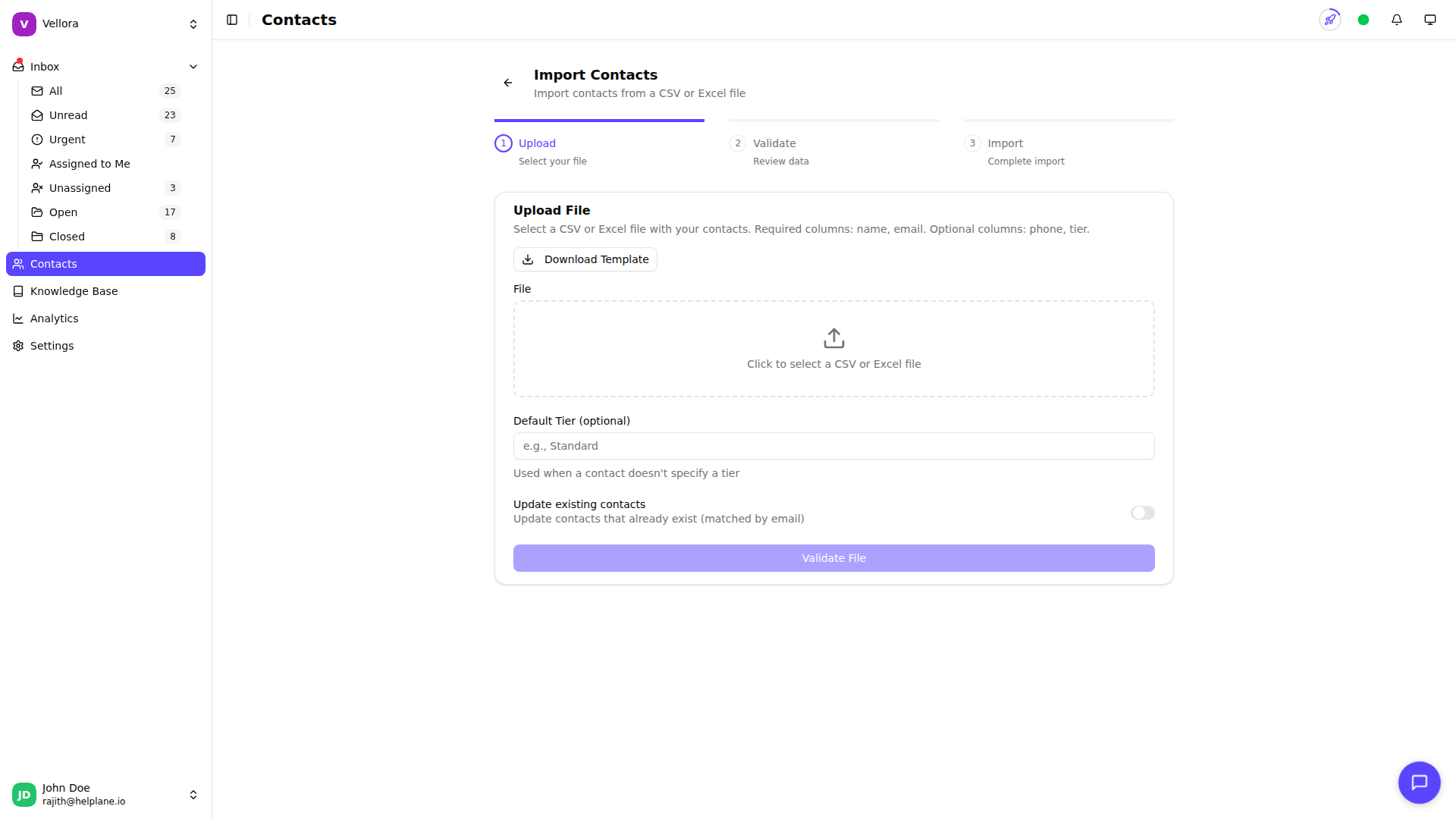
- Go to Contacts in the left sidebar
- Click Import
- Upload your CSV or Excel file
- Optionally set a default category
- Choose whether to update existing contacts
Validation
After uploading, Helplane validates your file:
- Preview the first 10 rows
- See counts of valid and invalid entries
- Review any errors or warnings
Fix issues in your spreadsheet and re-upload if needed.
Import Options
Update existing contacts: When enabled, contacts matched by email are updated with the new data. When disabled, duplicates are skipped.
Default category: Apply a category to all imported contacts that don't have one specified.
Completing the Import
- Review the validation summary
- Click Import to proceed
- View results showing:
- Total contacts processed
- Successfully imported
- Updated (if enabled)
- Failed (with reasons)
Download Template
Click Download Template to get a sample CSV file with the correct column headers and example data.