
Inviting Users
Updated Dec 15, 2025
Add team members to your Helplane workspace.
Accessing User Settings
- Go to Settings in the left sidebar
- Select Users under Users & Roles
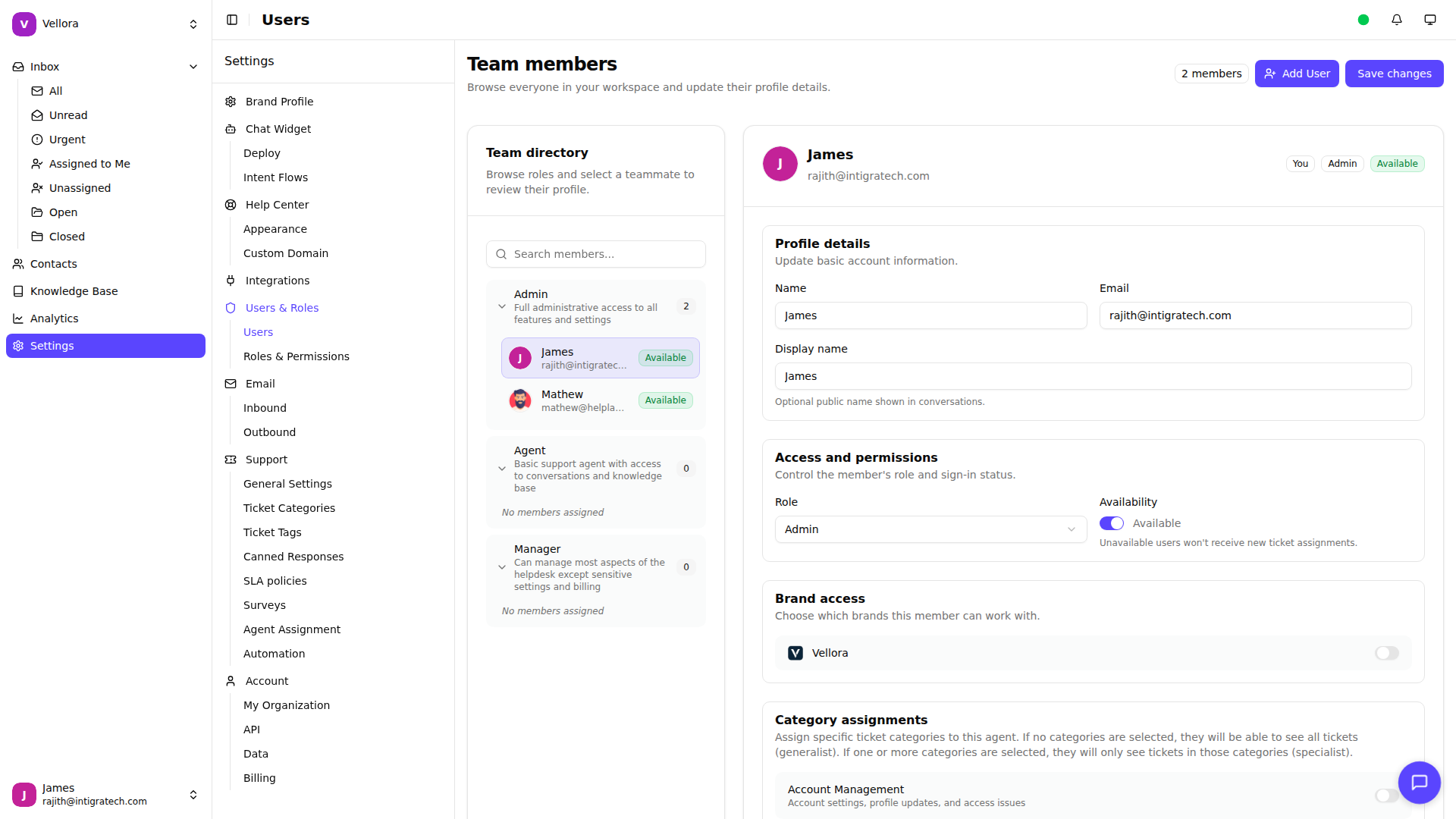
Sending an Invitation
- Click Add User in the top right
- Fill in the invitation form:
- Email (required): The user's email address
- Name (optional): Their full name
- Display Name (optional): Name shown in conversations
- Role (required): Select their permission level
- Brand Access (optional): Restrict to specific brands
- Click Invite
The user receives an email with a link to set up their account.
Brand Access
Control which brands a user can access:
- All brands: Leave brand selection empty
- Specific brands: Select one or more brands
Users only see conversations and settings for their assigned brands.
Resending Invitations
If a user didn't receive their invitation:
- Go to Settings > Users
- Find the user in the list
- Click the user to view their profile
- Click Resend Invite
Pending vs Active Users
- Pending: Invitation sent but not yet accepted
- Active: User has set up their account and can log in
Permission Requirements
You need the team.edit_members permission to invite users. This is typically available to Admin roles.