
Managing Roles
Updated Dec 15, 2025
Control what team members can access with role-based permissions.
Accessing Roles Settings
- Go to Settings in the left sidebar
- Select Roles & Permissions under Users & Roles
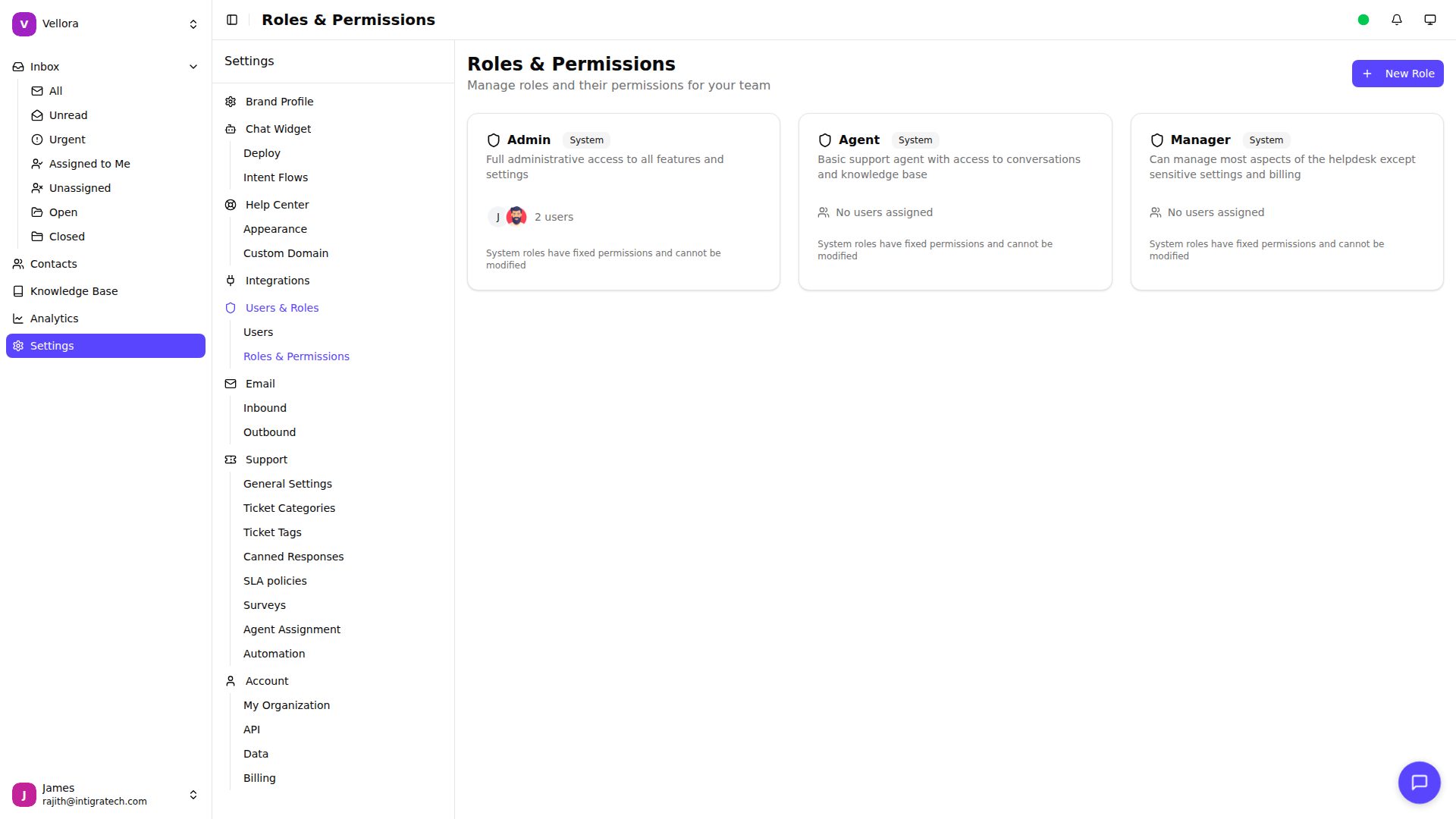
System vs Custom Roles
System Roles: Pre-defined roles that cannot be modified. These provide standard permission sets for common use cases.
Custom Roles: Roles you create with specific permission combinations for your team's needs. Available on Growth plans and above.
Creating a Custom Role
- Go to Settings > Roles & Permissions
- Click New Role
- Enter a role name and description
- Click Create
- Click Manage Permissions on the new role
- Select the permissions to grant
- Click Save
Permission Categories
Permissions are grouped by resource:
- Conversations: View, edit, assign, close conversations
- Team: View and manage team members and roles
- Workspace: Edit brand settings, channels, integrations
- Automation: View and manage automation rules
- Organization: View organization settings, transfer ownership
- Account: Manage API keys, view billing
Assigning Roles to Users
- Go to Settings > Users
- Click on a user to view their profile
- Select a new role from the Role dropdown
- The change is saved automatically
Deleting Roles
- Go to Settings > Roles & Permissions
- Click the delete icon on a custom role
- Confirm deletion
System roles cannot be deleted. Roles with assigned users should have those users reassigned first.