
Managing Tags
Updated Dec 15, 2025
Organize conversations with tags. Tags are available on all plans.
What are Tags?
Tags are labels you can apply to conversations for:
- Categorization and filtering
- Tracking specific issues or topics
- Automation triggers
- Reporting and analysis
Creating Tags
- Go to Settings in the left sidebar
- Select Ticket Tags under Support
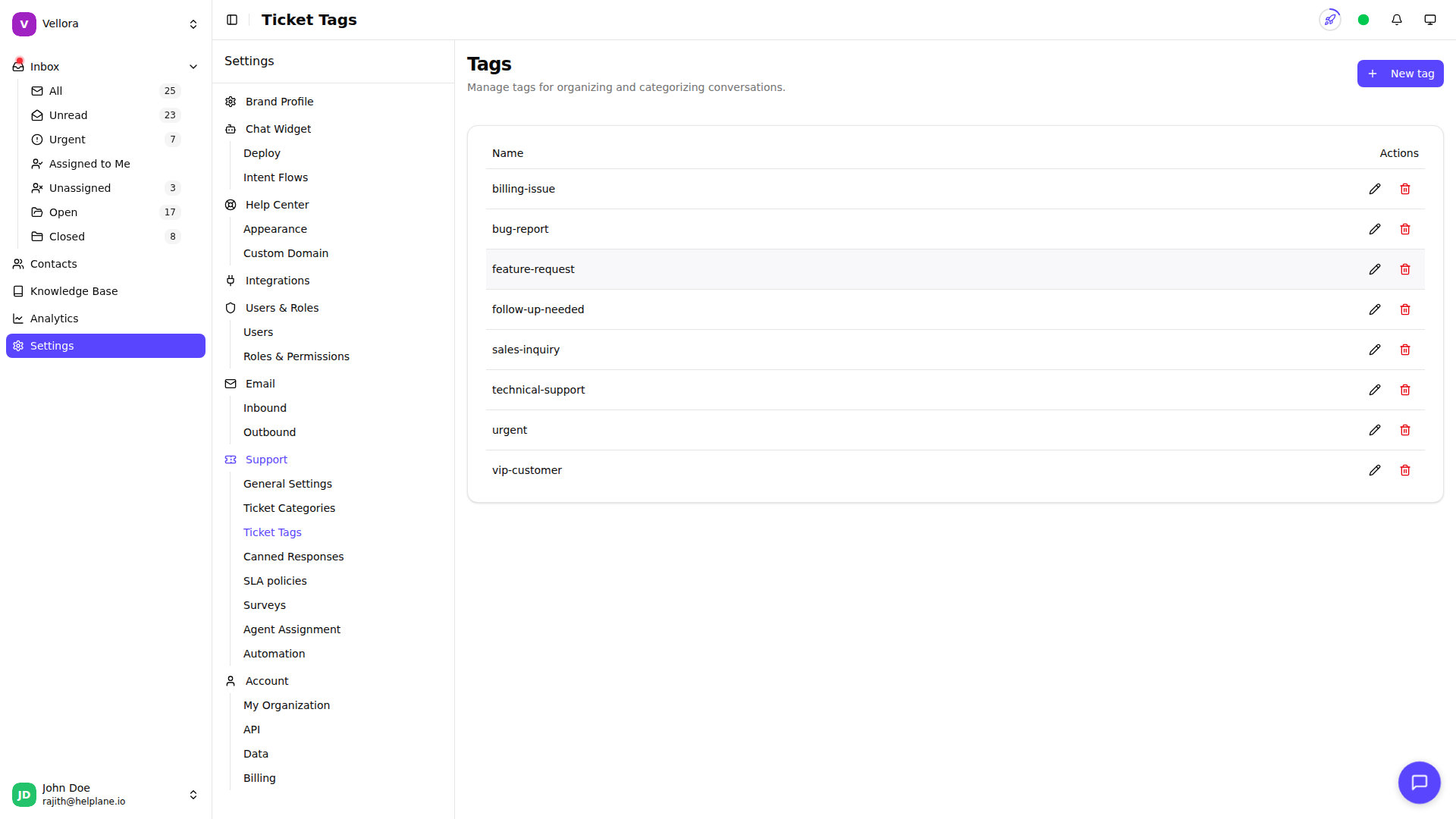
- Click New tag
- Enter a tag name
- Click Create
Applying Tags to Conversations
In the inbox:
- Open a conversation
- Find the tags section in the conversation details
- Click to add or remove tags
- Tags are saved automatically
Filtering by Tags
Find conversations with specific tags:
- Click the Filter button in the inbox
- Select one or more tags
- View filtered conversations
Using Tags in Automation
Tags can trigger or be applied by automation rules:
As a condition: Run rules only on conversations with specific tags.
As an action: Automatically add tags when conditions are met.
Example: Tag conversations containing "refund" as "billing-issue".
Editing and Deleting Tags
- Go to Settings > Ticket Tags
- Click the pencil icon to rename a tag
- Click the trash icon to delete
Deleting a tag removes it from all conversations.