
Navigating the Inbox
Updated Dec 15, 2025
The inbox is your central hub for managing customer conversations.
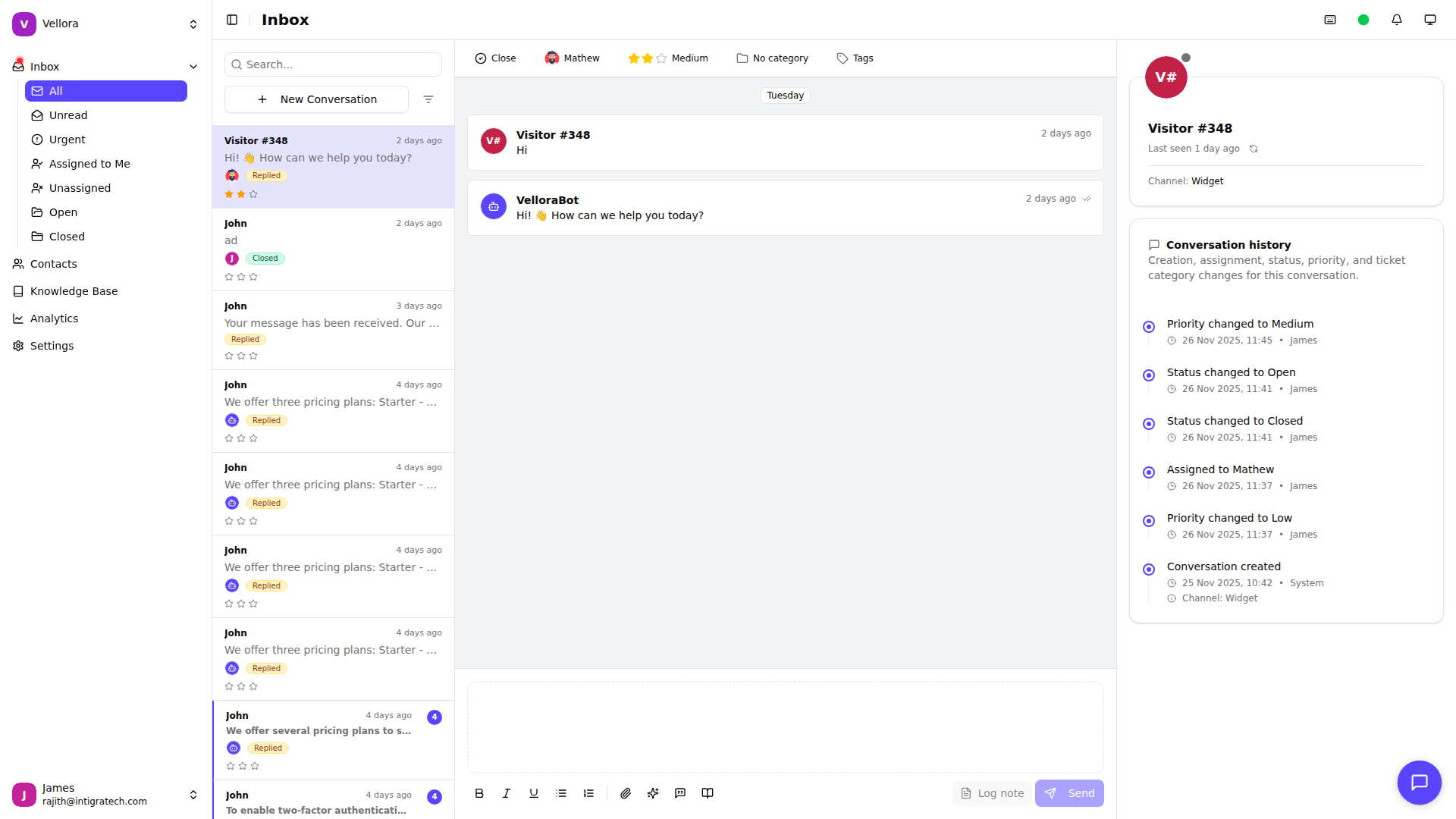
Inbox Layout
The inbox is divided into three main areas:
Left Panel - Conversation List Shows all conversations with preview information:
- Customer name and avatar
- Latest message preview
- Timestamp
- Status indicators (unread, assigned, etc.)
Center Panel - Conversation Thread Displays the full conversation history with the selected customer.
Right Panel - Details Sidebar Shows customer information, conversation details, and actions.
Filtering Conversations
Use filters to find specific conversations:
- Click the Filter button above the conversation list
- Filter by:
- Status (Open, Closed, All)
- Assignee (Unassigned, Assigned to me, Specific agent)
- Channel (Widget, Email, WhatsApp, etc.)
- Priority (Urgent, High, Normal, Low)
- Tags
- Click Apply Filters
Searching Conversations
Find conversations by keyword:
- Click the Search icon
- Type your search term
- Results show matching conversations
Search looks in:
- Customer name and email
- Message content
- Subject lines
Conversation Status
Conversations have two main states:
- Open: Active conversations needing attention
- Closed: Resolved conversations
Click Close to resolve a conversation, or Reopen to continue working on it.
Keyboard Shortcuts
Navigate faster with keyboard shortcuts:
- J - Next conversation
- K - Previous conversation
- ? - Show all shortcuts