
Notification Preferences
Control how Helplane notifies you.
Accessing Notification Settings
- Click your avatar in the bottom-left corner
- Select My Profile
- Click the Preferences tab
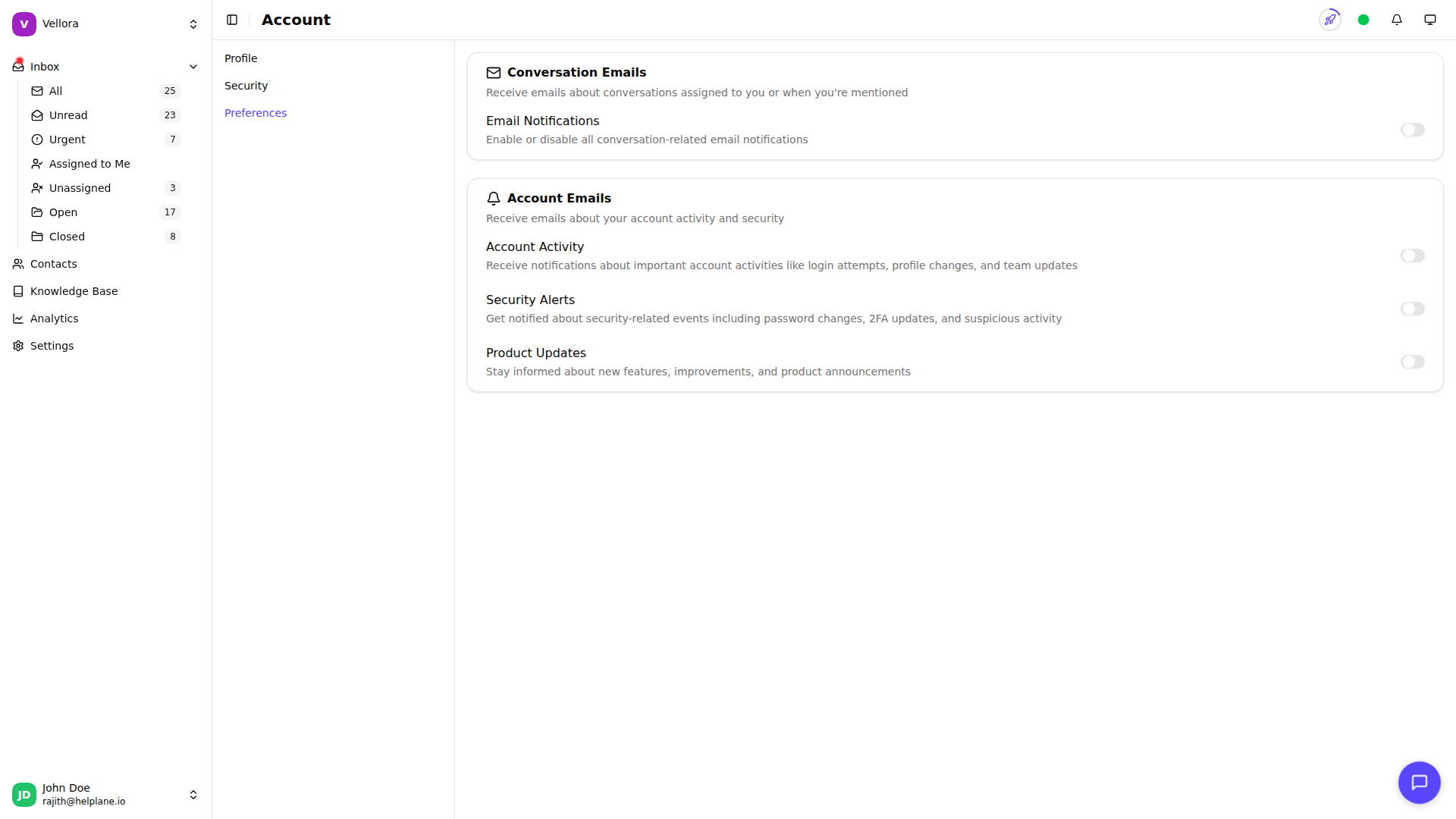
Email Notifications
Configure which emails you receive:
Conversation Notifications
Enable email notifications: Master toggle for all conversation-related emails.
Conversation Assignments: Receive an email when a conversation is assigned to you. The email includes a direct link to view the conversation.
Mentions: Receive an email when someone mentions you in a conversation. The email includes a direct link to view the conversation.
Account Notifications
Account Activity: Get notified about login attempts, profile changes, and team updates.
Security Alerts: Receive alerts about password changes, 2FA updates, and suspicious activity.
Product Updates: Stay informed about new features and improvements.
Toggle each option on or off based on your preferences.
Push Notifications
Push notifications are only available when using Helplane as a Progressive Web App (PWA). A PWA is a web app you can install on your device for a native app-like experience.
To install Helplane as a PWA:
- Desktop (Chrome): Click the install icon in the address bar, or go to Menu > Install Helplane
- Mobile (iOS Safari): Tap Share > Add to Home Screen
- Mobile (Android Chrome): Tap Menu > Add to Home Screen
New Messages: Get notified when contacts send messages.
Conversation Assignments: Know when conversations are assigned to you.
Mentions: Be alerted when someone mentions you.
Enabling Push Notifications
- Toggle Enable push notifications
- Allow notifications in your browser or device
- Configure individual notification types
Testing Notifications
Click Send test notification to verify push notifications are working.
Saving Preferences
Click Save changes after updating your preferences. Changes take effect immediately.