
Setting Up SLA Policies
Updated Dec 15, 2025
Define service level agreements to ensure timely customer support.
What are SLA Policies?
SLA (Service Level Agreement) policies define target response and resolution times for customer conversations. They help you:
- Set expectations for response times
- Track team performance against goals
- Get alerts before deadlines are missed
- Provide different service levels for different priorities
Accessing SLA Settings
- Go to Settings in the left sidebar
- Select SLA policies under the Support section
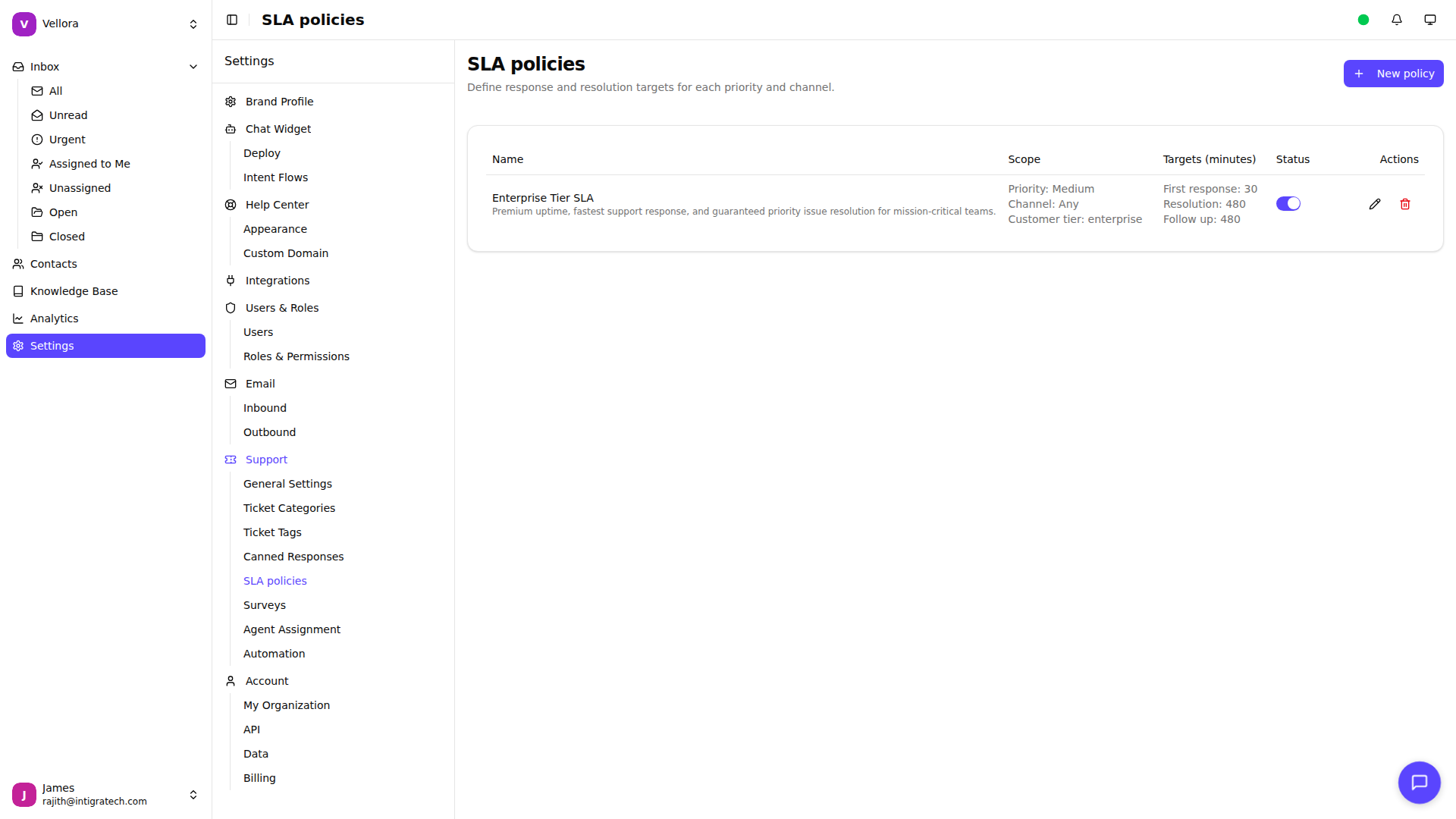
Creating an SLA Policy
- Click New policy
- Configure your policy:
- Name: Descriptive name (e.g., "High Priority SLA")
- Description: Optional details about the policy
- Priorities: Select which priority levels this policy applies to
- Channels: Choose specific channels or "Any channel"
- Customer Tier: Optional tier for customer segmentation
- Set your target times
- Click Create
Target Time Settings
First Response (required): Time to send the first agent response.
- Example: 30 minutes for urgent, 4 hours for normal
Resolution (required): Time to close the conversation.
- Example: 4 hours for urgent, 24 hours for normal
Follow Up (optional): Time to respond to follow-up messages.
- Example: 2 hours after customer replies
Enter times in minutes. For reference:
- 60 minutes = 1 hour
- 480 minutes = 8 hours
- 1440 minutes = 24 hours
Policy Matching
Policies are matched to conversations based on:
- Priority: Conversation priority matches at least one policy priority
- Channel: Conversation channel matches (or policy applies to all channels)
- Customer Tier: If specified, customer tier must match
You can create multiple policies for different combinations. For example:
- High priority, any channel: 30-minute first response
- Normal priority, email: 4-hour first response
- VIP customers: 15-minute first response
Activating Policies
Toggle the status switch in the policy list to activate or deactivate policies. Only active policies are applied to new conversations.