
Testing Automation Rules
Updated Dec 15, 2025
Test your automation rules before they go live to ensure they work as expected.
Using the Test Modal
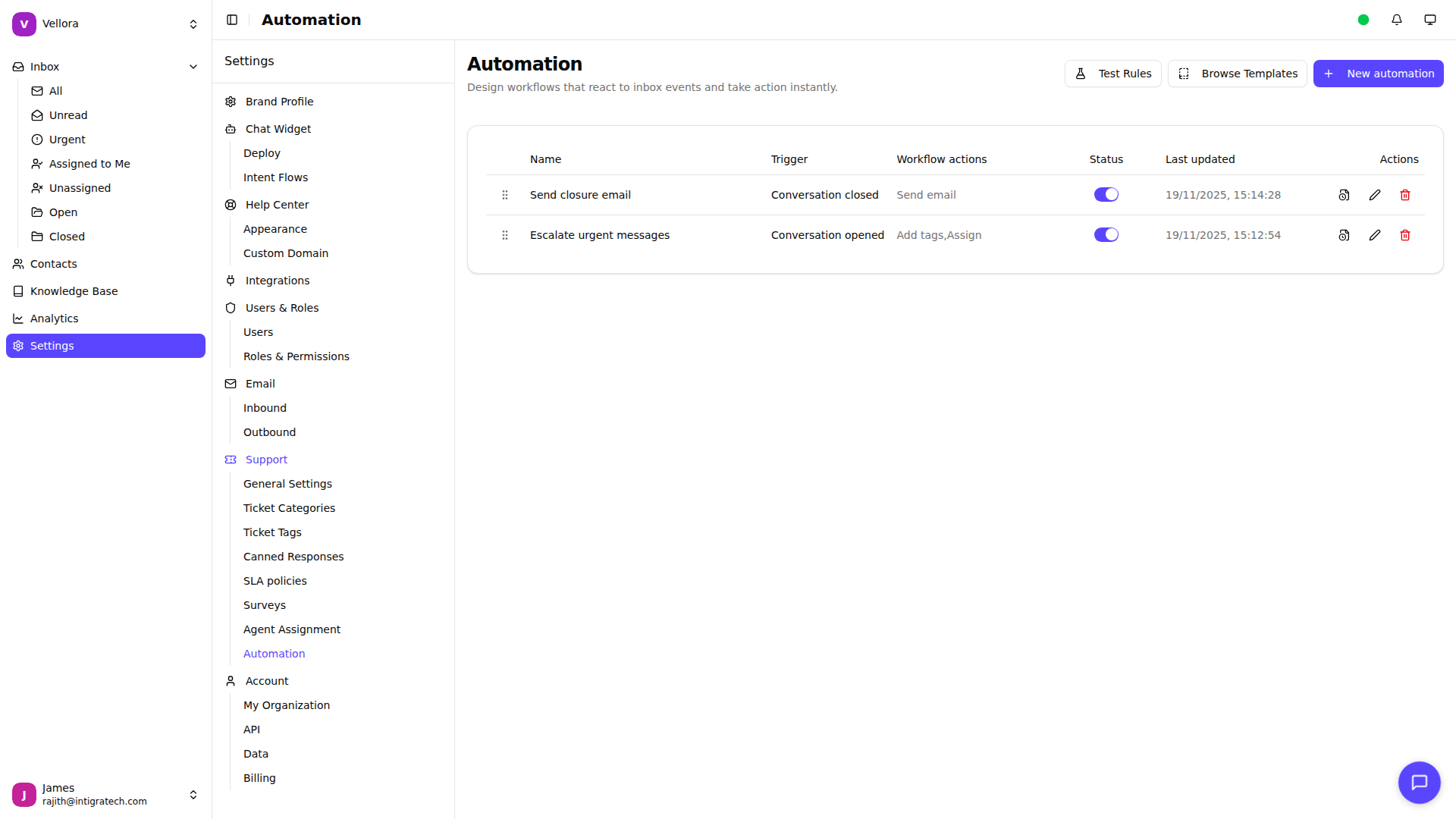
- Go to Settings > Automation
- Click Test Rules in the top action bar
- Enter sample conversation data:
- Trigger Type: Select which event to simulate
- Message Content: Sample customer message
- Contact Email: Customer email address
- Contact Name: Customer name
- Priority: Low, Normal, High, or Urgent
- Channel: Widget, Email, WhatsApp, etc.
- Click Test to see results
Understanding Test Results
The test shows two categories:
Matching Rules (green): Rules that would execute for this conversation. Shows:
- Rule name and priority order
- Which actions would run
- Whether the rule has "Stop on match" enabled
Non-Matching Rules (gray): Rules that didn't match. Shows:
- Which condition failed
- Why the rule was skipped
This helps you debug your condition logic and verify rules work correctly.
Viewing Activity Logs
To see what a rule has done in the past:
- Go to Settings > Automation
- Find the rule in the list
- Click the clock icon on the right side of the rule row
- View the execution history showing:
- When the rule was triggered
- What actions were executed
- Success or failure status
Best Practices
- Test rules with various scenarios before activating
- Start with rules in inactive state while testing
- Use activity logs to verify rules are working in production
- Review matching vs non-matching results to refine conditions