
Using Canned Responses
Updated Dec 15, 2025
Save time with pre-written reply templates.
What are Canned Responses?
Canned responses are saved reply templates you can quickly insert into conversations. Use them for:
- Common questions and answers
- Greetings and sign-offs
- Standard procedures and instructions
- Policy explanations
Accessing Canned Responses
- Go to Settings in the left sidebar
- Select Canned Responses under Support
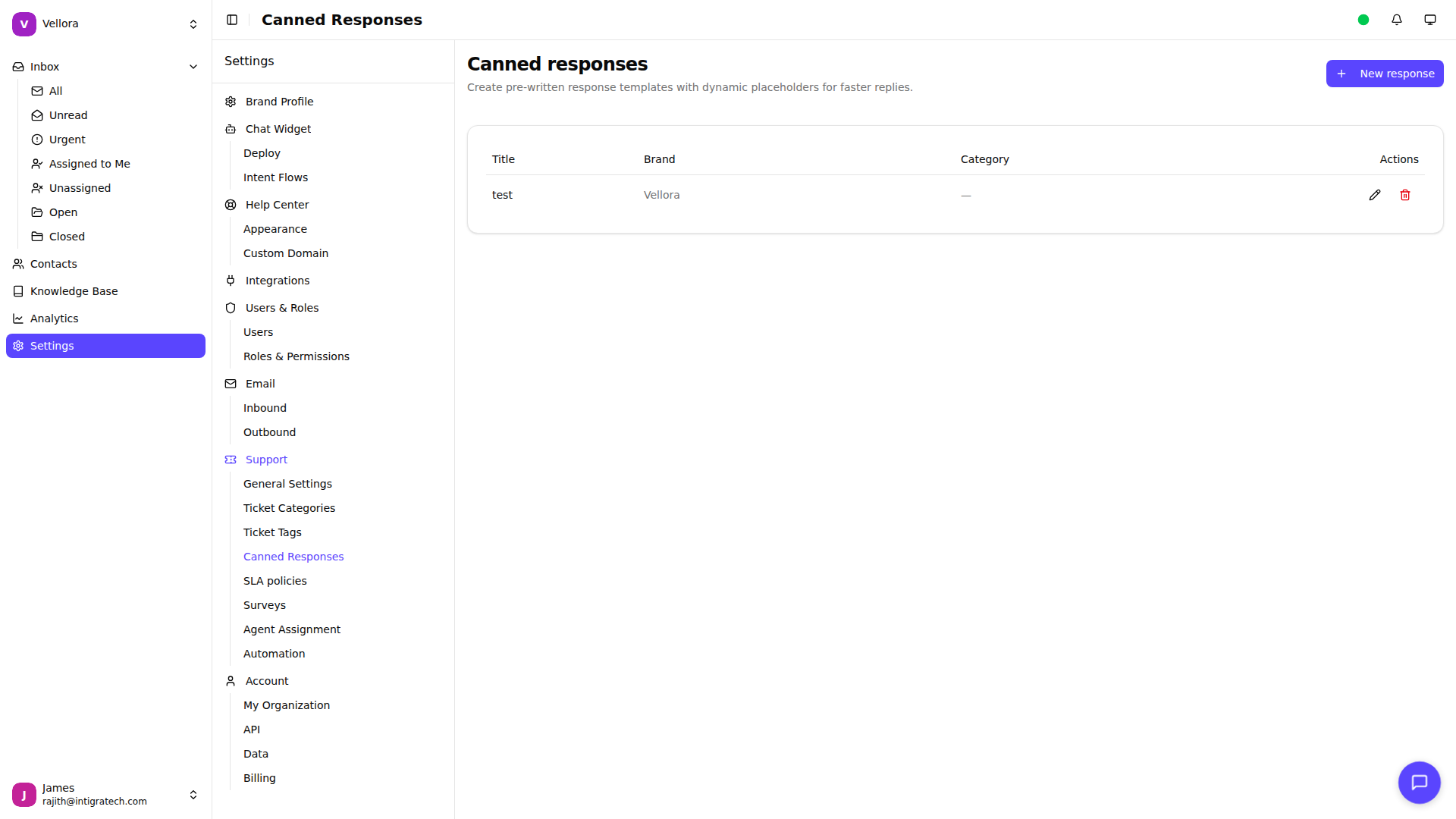
Creating a Canned Response
- Click New response
- Fill in the form:
- Title: A name to identify the response
- Content: The reply text with formatting
- Category: Optional grouping for organization
- Click Save
Using Placeholders
Make responses dynamic with placeholders:
{{customer_name}}- Customer's name{{customer_email}}- Customer's email{{agent_name}}- Your name{{conversation_id}}- Conversation ID{{brand_name}}- Your brand name
Placeholders are automatically replaced when you insert the response.
Inserting a Canned Response
In the conversation composer:
- Click the canned responses icon in the toolbar
- Search for a response by title or content
- Click the response to insert it
- Edit as needed before sending
Organizing with Categories
Group related responses with categories:
- When creating or editing a response, enter a category name
- Use the category filter buttons to find responses quickly
- Categories are created automatically when you use a new name
Editing and Deleting
- Go to Settings > Canned Responses
- Find the response in the list
- Click the pencil icon to edit
- Click the trash icon to delete
Availability
Canned Responses are available on Standard plans and above.