
Importing Articles
Updated Dec 15, 2025
Bulk import articles from a spreadsheet or another help desk.
Preparing Your Import File
Create a CSV or Excel file with these columns:
| Column | Required | Description |
|---|---|---|
| title | Yes | Article title |
| content | Yes | Article content (HTML or Markdown) |
| category | No | Category name or path |
| slug | No | URL slug (auto-generated if empty) |
Content Format
Your content can be:
- Markdown - Will be converted to HTML
- HTML - Used as-is
Images referenced by URL will be automatically downloaded and re-uploaded to Helplane.
Importing Articles
- Click Knowledge Base in the left sidebar
- Click the Import button
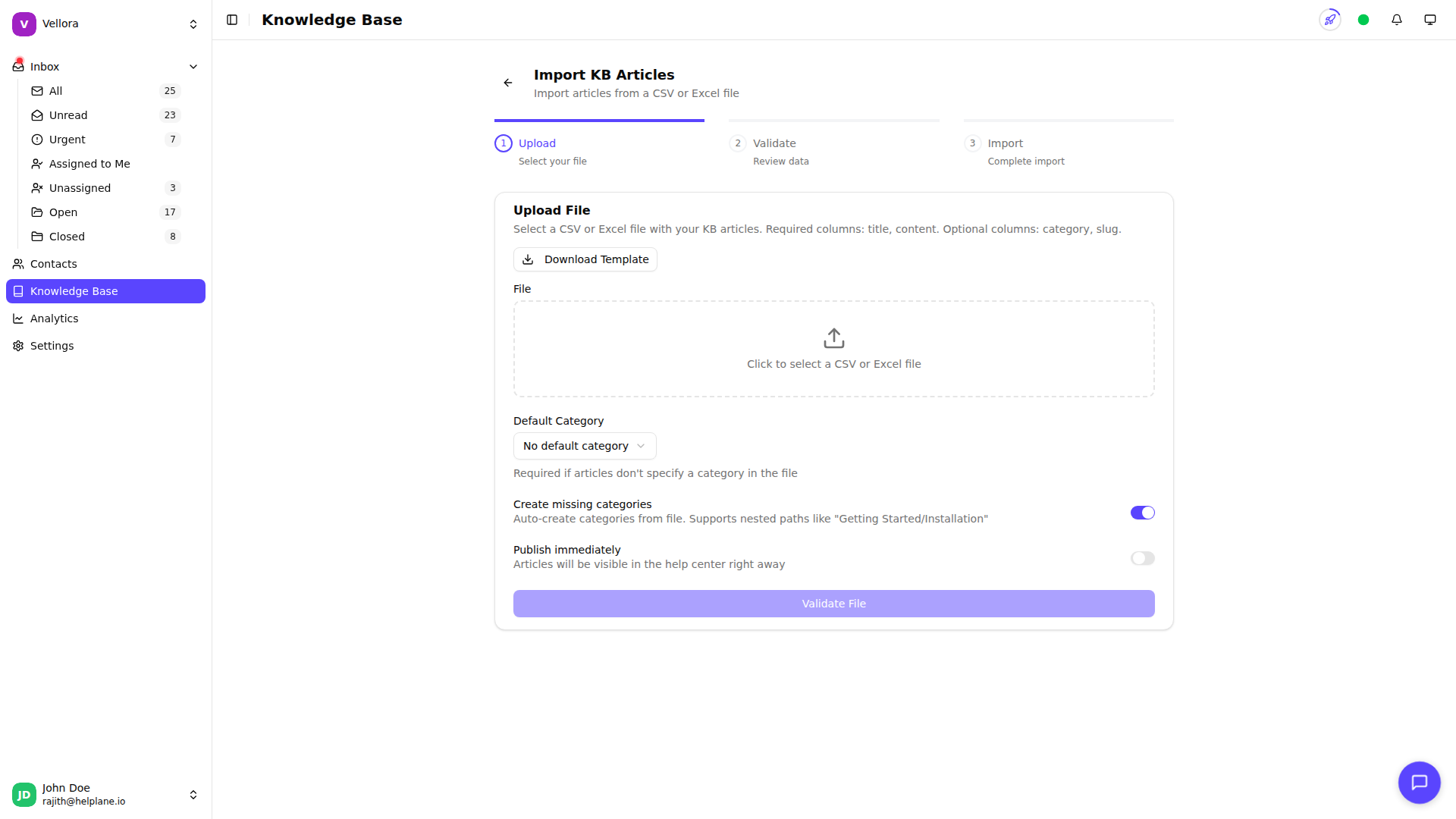
- Upload your CSV or Excel file
- Preview the import and fix any errors
- Choose whether to publish immediately or import as drafts
- Click Import
Category Handling
If you include a category column:
- Existing categories will be matched by name
- New categories will be created automatically
- Use forward slashes for nested categories (e.g., "Getting Started/Setup")
After Import
Review your imported articles:
- Check formatting and images
- Verify categories are correct
- Publish any draft articles when ready
Troubleshooting
Import failed?
- Check that required columns (title, content) are present
- Ensure the file is valid CSV or XLSX format
- Look for special characters that may need escaping