
Setting Up Aircall
Connect Aircall to sync completed voice calls into Helplane conversations.
What is Aircall?
Aircall is a cloud-based phone system designed for modern businesses. By connecting Aircall to Helplane, you can:
- Automatically create conversations from completed calls
- Map Aircall users to Helplane agents
- Access call recordings and metadata
- Maintain a unified view of all customer communications
Prerequisites
Before setting up Aircall, you'll need:
- An Aircall account with API access
- Your Aircall Company ID
- An Aircall API Token
Getting Aircall Credentials
Finding Your Company ID
- Log in to your Aircall Dashboard
- Go to Settings > General
- Your Company ID is displayed in the account information section
Creating an API Token
- In Aircall Dashboard, go to Integrations > API Keys
- Click Create API Key
- Give it a descriptive name (e.g., "Helplane Integration")
- Copy the generated API Token (you won't be able to see it again)
Connecting Aircall
- Go to Settings in the left sidebar
- Select Integrations
- Find the Aircall card and click Connect
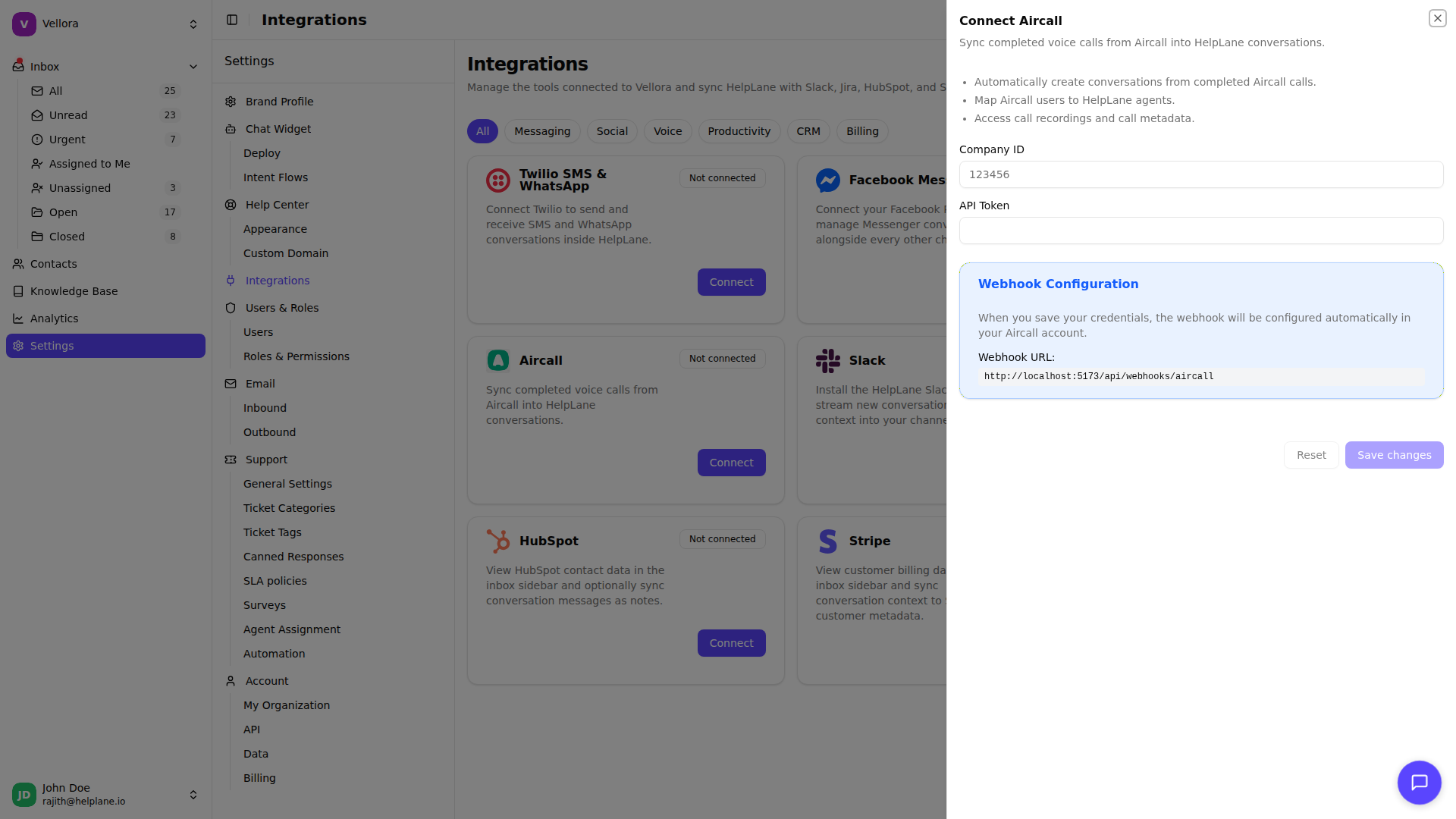
Required Settings
Company ID
Your Aircall Company ID (e.g., 123456).
API Token Your Aircall API Token for authentication.
Click Save changes to connect.
Webhook Configuration
When you save your Aircall credentials, Helplane automatically configures the webhook in your Aircall account. You'll see a confirmation message when the webhook is set up successfully.
Automatic Setup
The webhook subscribes to call.ended events, ensuring completed calls are synced to Helplane.
Manual Configuration (if needed) If automatic configuration fails:
- Go to your Aircall Dashboard
- Navigate to Integrations > Webhooks
- Click Add Webhook
- Enter the webhook URL shown in Helplane
- Select the
call.endedevent - Save the webhook
Agent Mapping
Map your Aircall users to Helplane agents for proper call attribution.
- In the Aircall integration panel, click Manage Agent Mappings
- Click New mapping
- Enter the Aircall User ID (external agent ID)
- Select the corresponding Helplane user
- Click Create
Finding Aircall User IDs
Aircall User IDs can be found in:
- Aircall API responses
- Aircall Dashboard user settings
- Webhook payloads (in the
user.idfield)
Create a mapping for each agent who handles calls.
How It Works
When a call ends in Aircall:
- Aircall sends a
call.endedwebhook to Helplane - Helplane creates a new conversation (or updates existing one based on phone number)
- The call is assigned to the mapped Helplane user
- Call metadata and recording links are attached
Viewing Voice Conversations
Voice conversations from Aircall appear in your inbox with:
- Call direction (inbound/outbound)
- Call duration
- Recording playback (when available)
- Caller/recipient phone number
- Timestamp and assigned agent
Call Recording Access
If call recording is enabled in your Aircall account:
- Recordings are accessible directly within Helplane
- Play recordings in the conversation view
- No need to switch between platforms
Best Practices
Map all users Create agent mappings for every Aircall user to ensure calls are properly attributed.
Enable call recording Enable recording in Aircall for full conversation context in Helplane.
Use consistent contact info Match phone numbers with existing contacts for a unified customer timeline.
Troubleshooting
Calls not syncing
- Verify Company ID and API Token are correct
- Check webhook configuration in Aircall Dashboard
- Ensure the webhook is subscribed to
call.endedevents
Invalid credentials error
- Regenerate your API Token in Aircall
- Update the token in Helplane settings
Calls assigned to wrong user
- Verify agent mappings are correct
- Check that Aircall User IDs match exactly
Webhook configuration failed
- Ensure your API Token has permission to create webhooks
- Try manual webhook configuration in Aircall Dashboard
Disconnecting Aircall
To disconnect the integration:
- Go to Settings > Integrations
- Find Aircall and click Manage
- Clear the credentials and save
- Optionally, remove the webhook from Aircall Dashboard