
Setting Up Telegram
Connect your Telegram Bot to receive and respond to customer messages through Helplane.
Prerequisites
Before setting up Telegram, you'll need:
- A Telegram account
- A Telegram Bot created via @BotFather
Creating a Telegram Bot
If you don't have a bot yet, follow these steps:
- Open Telegram and search for @BotFather
- Start a conversation and send
/newbot - Follow the prompts to choose a name and username for your bot
- BotFather will provide a Bot Token — copy this token
Your bot token looks like: 1234567890:ABCDEFGHIJKLMNOPQRSTUVWXYZabcdefghij
Configuring Telegram in Helplane
- Go to Settings in the left sidebar
- Select Integrations
- Find the Telegram card and click Connect
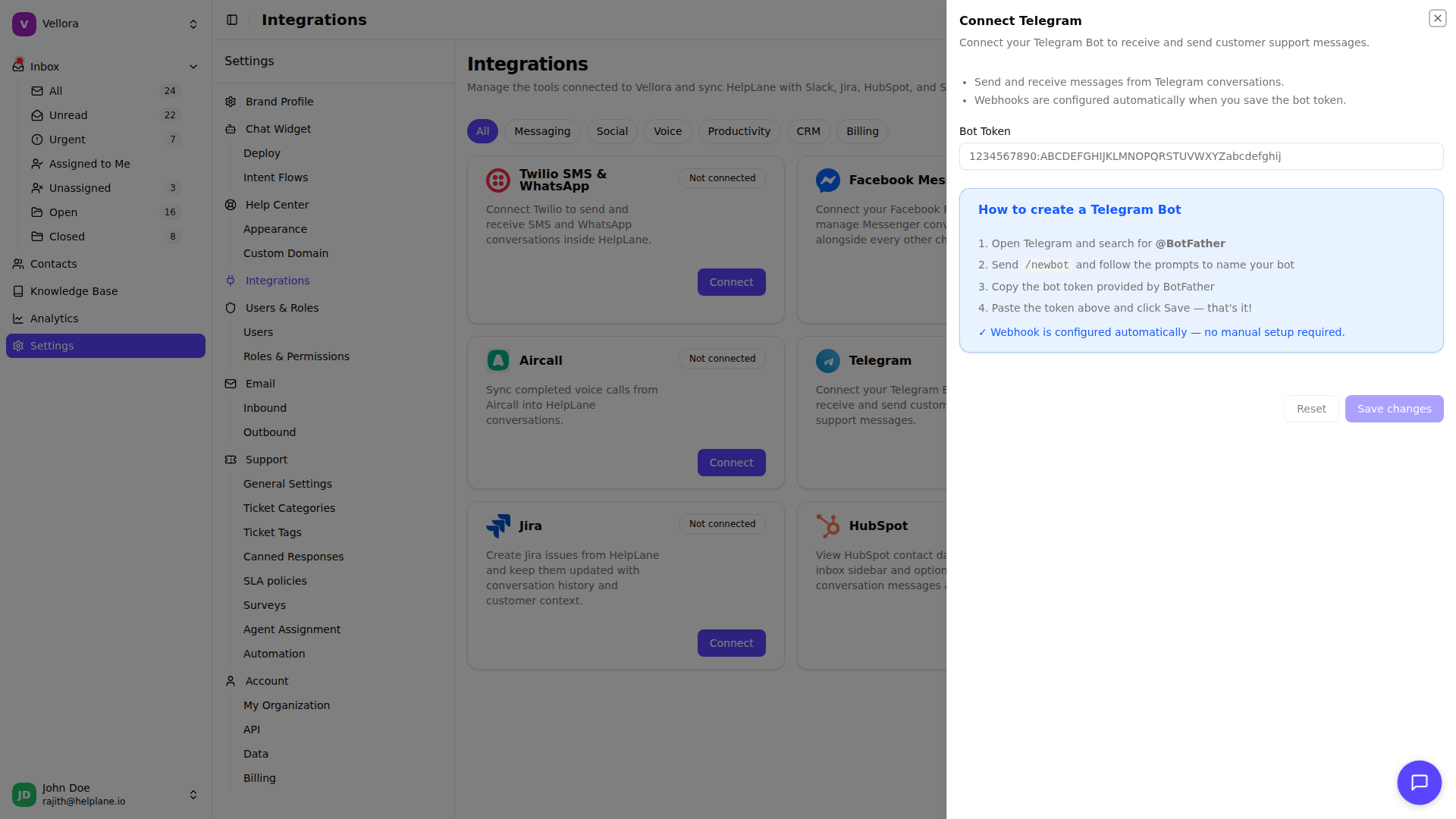
Required Settings
Bot Token Paste the bot token you received from BotFather. This token authenticates Helplane with the Telegram Bot API.
Automatic Webhook Configuration
When you save your bot token, Helplane automatically configures the Telegram webhook. No manual setup is required — your bot will immediately start receiving messages.
You'll see a success message confirming the webhook was configured.
Testing the Connection
After configuration:
- Open Telegram and find your bot by its username
- Send a message to your bot
- Check your Helplane inbox for the incoming conversation
- Reply to verify two-way messaging works
Supported Message Types
Telegram integration supports receiving:
- Text messages — Standard text conversations
- Photos — Images sent by customers
- Documents — Files of any type
- Videos — Video files
- Audio — Audio files with metadata
- Voice messages — Recorded voice notes
- Video notes — Circular video messages
- Stickers — Telegram stickers (displayed with emoji reference)
All media attachments are captured and displayed in the conversation thread.
How It Works
Inbound Messages When a customer messages your bot, the message appears in your Helplane inbox as a new conversation. The customer's Telegram name and username are captured for identification.
Outbound Replies When you reply from Helplane, the message is sent through the Telegram Bot API. Messages support basic HTML formatting.
Conversation Threading All messages from the same Telegram user are grouped into a single conversation thread, maintaining full conversation history.
Best Practices
Set a bot description
Use BotFather's /setdescription command to explain what your bot does. This helps customers understand they're contacting support.
Add a profile picture
Use /setuserpic in BotFather to give your bot a recognizable avatar.
Configure bot commands
Use /setcommands to add helpful commands like /start or /help for customers.
Troubleshooting
Messages not appearing
- Verify your bot token is correct
- Check that the webhook was configured successfully (look for the success message)
- Ensure your bot hasn't been blocked or deleted
Cannot send replies
- Verify your bot token is still valid
- Check if the customer has blocked your bot
- Ensure the conversation is still active
Webhook configuration failed
- Double-check that your bot token is correct
- Make sure the token hasn't been regenerated in BotFather
- Try disconnecting and reconnecting the integration