
Setting Up Twilio Flex (Voice)
Connect Twilio Flex to receive completed voice calls and track them alongside your other conversations.
What is Twilio Flex?
Twilio Flex is a cloud-based contact center platform. By connecting Flex to Helplane, completed voice calls automatically appear as conversations, allowing you to:
- Track all customer interactions in one place
- View call recordings directly in conversation view
- Map Flex agents to Helplane users for proper attribution
- Maintain a complete history of voice and text communications
Prerequisites
Before setting up Twilio Flex, you'll need:
- A Twilio account with Flex enabled
- Twilio Account SID and Auth Token (same credentials used for SMS/WhatsApp)
- Access to your Twilio Flex TaskRouter settings
Connecting Twilio Flex
Twilio Flex uses the same Twilio credentials as SMS and WhatsApp integrations.
- Go to Settings in the left sidebar
- Select Integrations
- Find the Twilio Flex (Voice) card
If you've already configured Twilio for SMS, Flex will show as "Connected" automatically.
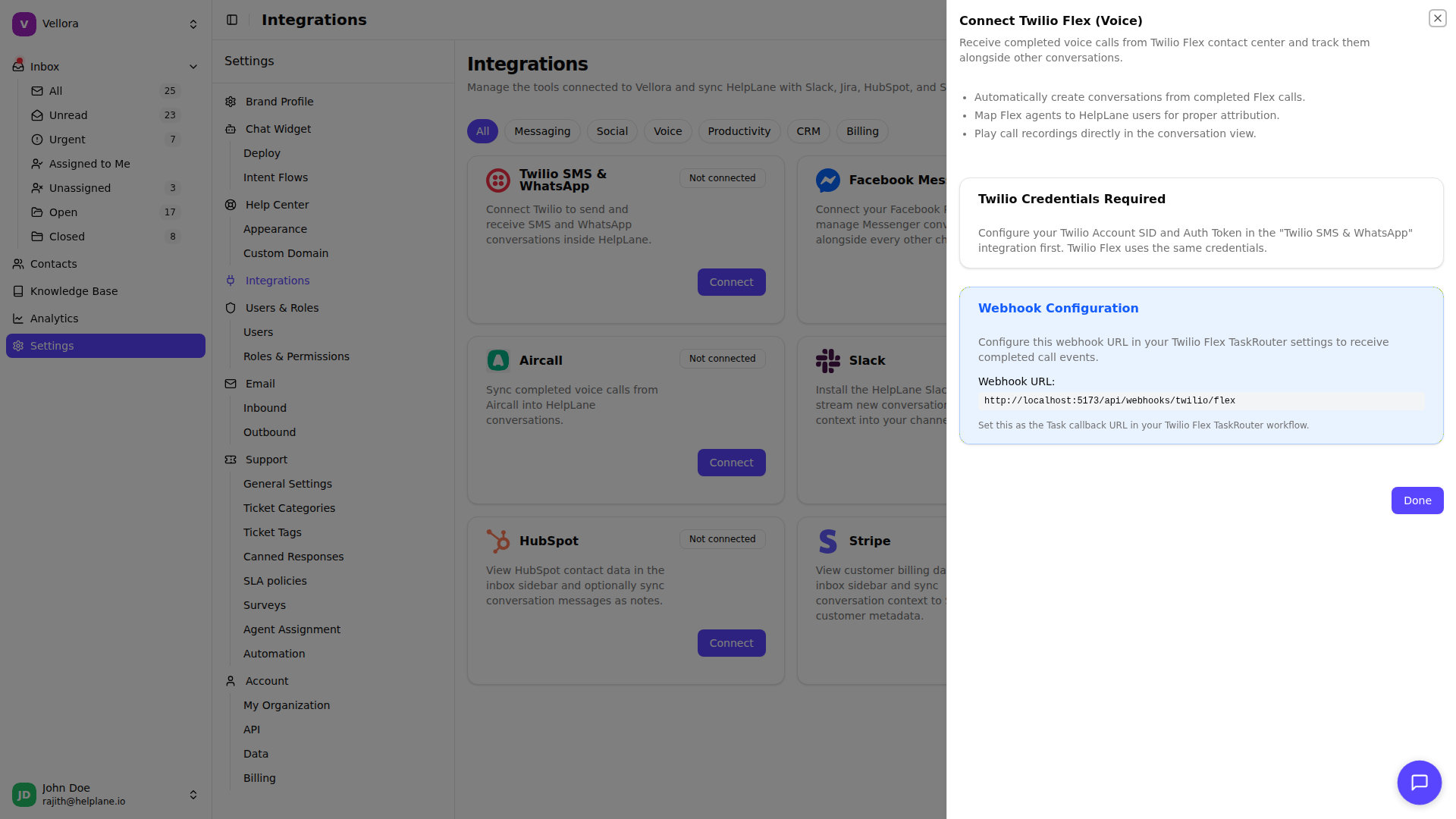
If Twilio is Not Connected
- First configure the Twilio SMS & WhatsApp integration with your Account SID and Auth Token
- The Twilio Flex integration will then show as connected
Configuring the Webhook
Unlike SMS, Twilio Flex webhooks must be configured manually in your TaskRouter settings.
Webhook URL Copy the webhook URL shown in the integration settings:
{your-domain}/api/webhooks/twilio/flexSetting Up in Twilio Console
- Log in to your Twilio Console
- Navigate to Flex > TaskRouter > Workspaces
- Select your workspace
- Go to Settings
- Find the Task callback URL field
- Paste the Helplane webhook URL
- Save your changes
Agent Mapping
Map your Twilio Flex agents to Helplane users so calls are attributed to the correct team member.
- In the Twilio Flex integration panel, click Manage Agent Mappings
- Click New mapping
- Enter the Flex WorkerSid (e.g.,
WKxxxxxxxxxxxxxxxxxxxxxxxxxxxxxxxx) - Select the corresponding Helplane user
- Click Create
Finding Worker SIDs
To find a Worker's SID in Twilio:
- Go to Flex > TaskRouter > Workers in your Twilio Console
- Click on a worker to view their details
- Copy the Worker SID from the overview
Repeat for each agent who handles calls in Flex.
How It Works
When a call ends in Twilio Flex:
- Flex sends a webhook to Helplane with call details
- Helplane creates a new conversation (or updates an existing one)
- The call is assigned to the mapped Helplane user
- Recording and call metadata are attached to the conversation
Viewing Voice Conversations
Voice conversations appear in your inbox with a phone icon. Each conversation includes:
- Call direction (inbound/outbound)
- Call duration
- Recording playback (if available)
- Caller/recipient phone number
- Timestamp and agent attribution
Best Practices
Map all agents Create mappings for every Flex worker to ensure proper attribution.
Use consistent phone formatting Store customer phone numbers consistently to group related calls and messages.
Monitor webhook health Check Twilio Console logs if calls stop appearing in Helplane.
Troubleshooting
Calls not appearing
- Verify the webhook URL is correct in TaskRouter settings
- Check that your Twilio credentials are valid
- Review Twilio TaskRouter logs for webhook errors
Calls assigned to wrong user
- Verify agent mappings are correct
- Ensure Worker SIDs match exactly (case-sensitive)
No recordings available
- Check recording settings in your Flex configuration
- Ensure recordings are enabled for the call flow