
Setting Up WhatsApp
Connect WhatsApp to receive and respond to customer messages through Helplane.
Prerequisites
Before setting up WhatsApp, you'll need:
- A Twilio account with WhatsApp enabled
- A WhatsApp-enabled phone number from Twilio
- Your Twilio Account SID and Auth Token
Configuring Twilio for WhatsApp
- Go to Settings in the left sidebar
- Select Integrations
- Find the Twilio integration card
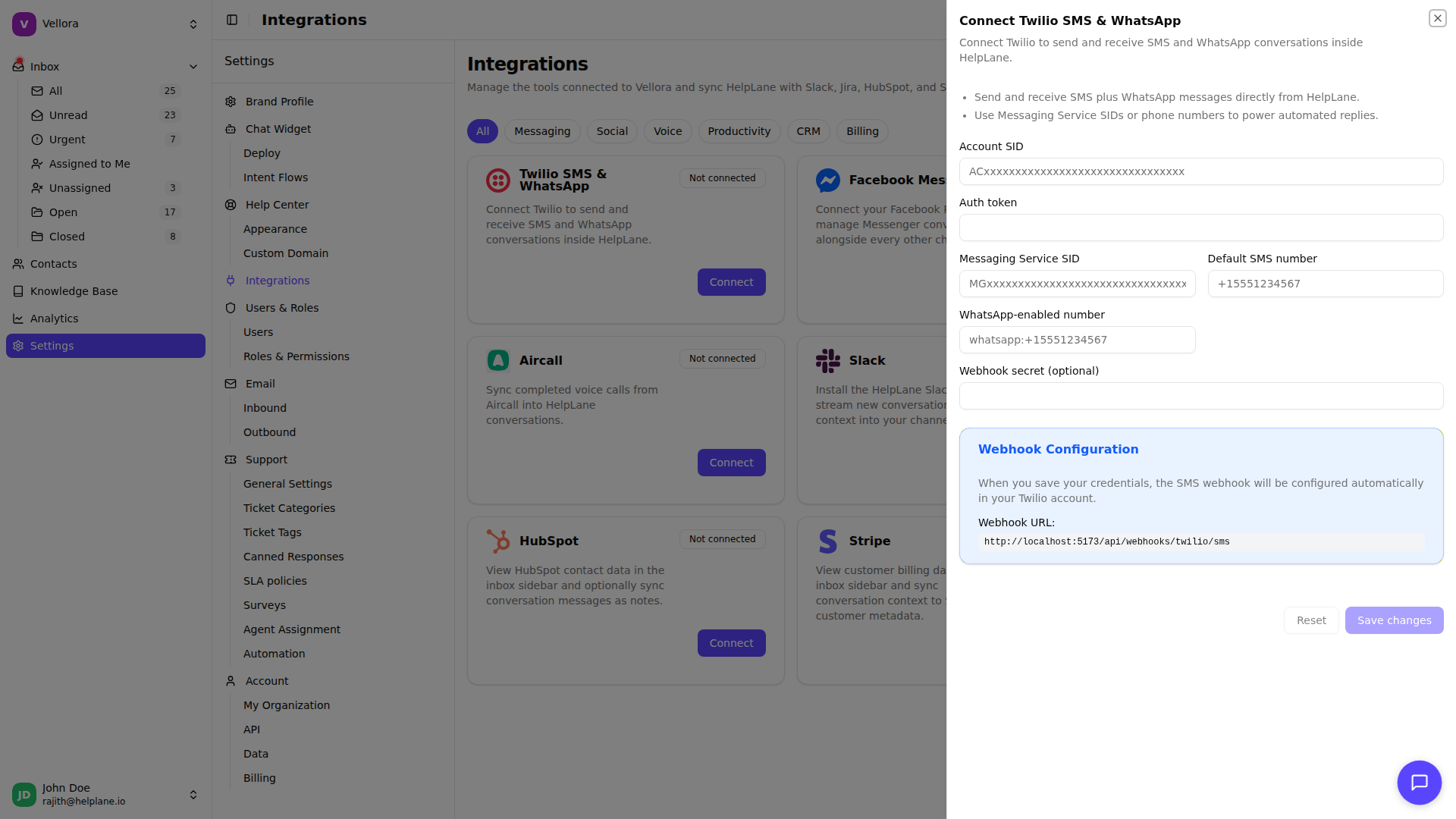
Required Settings
Enter the following credentials from your Twilio account:
Account SID Your Twilio Account SID (starts with "AC"). Find this in your Twilio Console dashboard.
Auth Token Your Twilio Auth Token. This is used to authenticate API requests.
WhatsApp-enabled Number
Your Twilio WhatsApp number in the format whatsapp:+15551234567. This must be a number that has been approved for WhatsApp messaging in your Twilio account.
Webhook Secret (Optional) A secret key to verify incoming webhook requests from Twilio.
Setting Up the Webhook
Helplane needs to receive incoming WhatsApp messages via webhook. You have two options:
Option 1: Auto-Configure
- Save your Account SID, Auth Token, and WhatsApp number first
- Click the Auto-Configure Webhook button
- Helplane will automatically configure Twilio to send messages to the correct URL
Option 2: Manual Configuration
- Copy the webhook URL shown in the settings panel
- Go to your Twilio Console
- Navigate to your WhatsApp Sender settings
- Set the webhook URL for incoming messages
Testing the Connection
After configuration:
- Send a WhatsApp message to your Twilio number
- Check your Helplane inbox for the incoming conversation
- Reply to verify two-way messaging works
Troubleshooting
Messages not appearing
- Verify your webhook URL is correctly configured in Twilio
- Check that your WhatsApp number format includes the
whatsapp:prefix - Ensure your Twilio account has sufficient credits
Cannot send replies
- Verify your Auth Token is correct
- Check that your WhatsApp number is properly verified in Twilio
- Ensure you're responding within the 24-hour WhatsApp messaging window